One File, Every Session: Keeping Copilot Instructions Consistent Across CLI and Codespaces
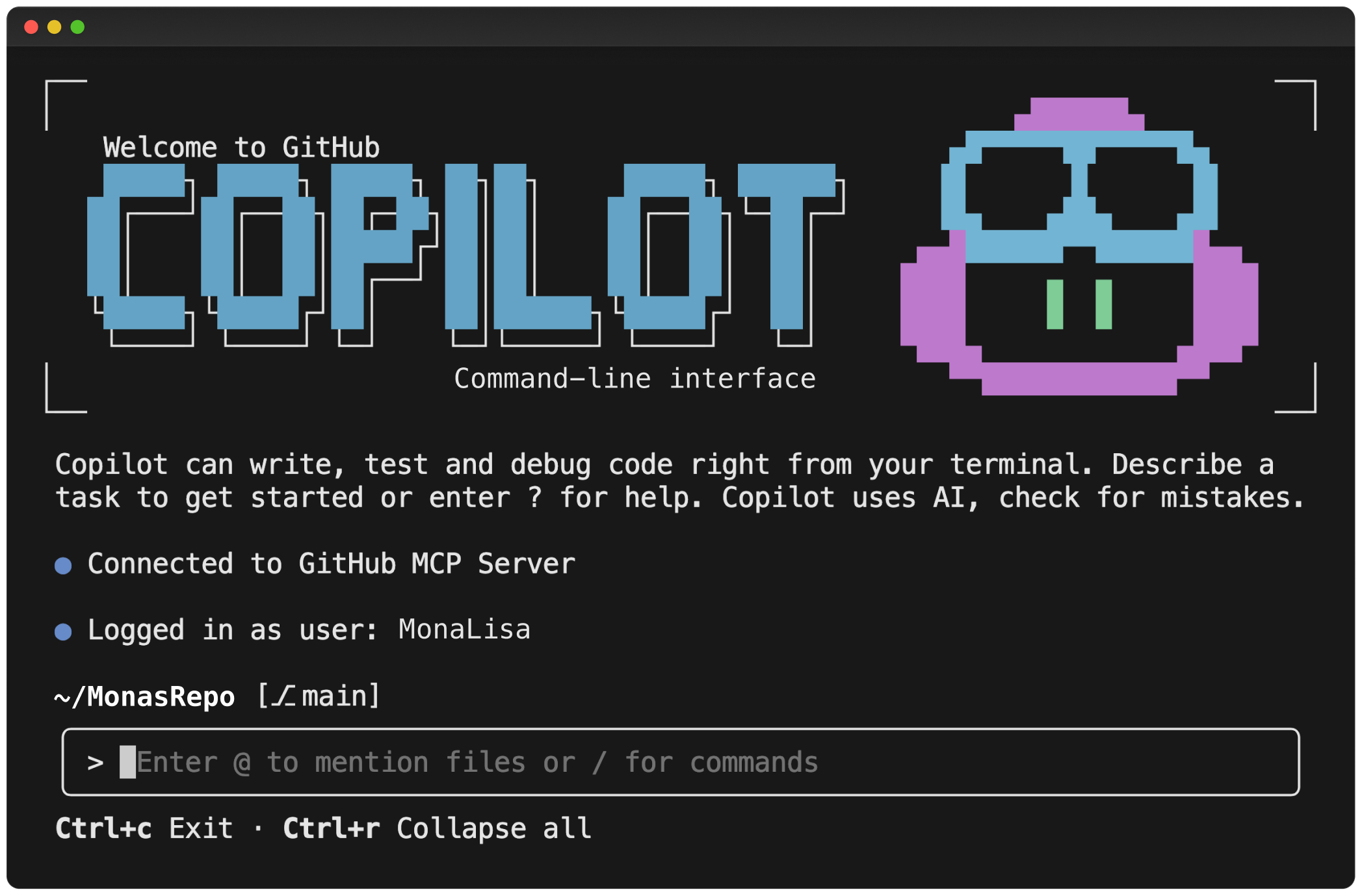
If you’ve invested time writing a solid copilot-instructions.md for your preferred coding style, PR conventions, and tooling preferences, you probably want those instructions loaded everywhere you work - not just in one repo.
Here’s how I set up a single source of truth that automatically loads in every Copilot CLI session and every Codespace, with zero manual steps.
Why bother?
Every time you correct Copilot - “always create PRs as draft,” “don’t call that a bug until it’s verified,” “use this tone in reviews” - that’s a lesson learned. Without global instructions, those corrections vanish the moment you switch repos or move between Codespaces and CLI.
My instructions have grown organically from real sessions - things like “assign me to PRs so I can track follow-up,” “run make lint and make test before committing,” and “frame review feedback as additive, not corrective.” These aren’t hypothetical preferences. They came from actual mistakes Copilot made that I had to correct, sometimes more than once.
With global instructions in place, those corrections stick. Copilot applies them whether you’re debugging a CI failure, reviewing a PR, or writing a blog post from a personal repo. The alternative is either re-explaining your preferences constantly or accepting inconsistent behavior across repos.
The problem
Copilot CLI reads global instructions from ~/.copilot/copilot-instructions.md. This is a local file that doesn’t sync across machines, and it doesn’t show up in Codespaces by default. VS Code and other IDEs only read .github/copilot-instructions.md from the repository root - they don’t support a global home directory path.
I wanted one instructions file that:
- Loads in every Copilot CLI session regardless of which repo I’m in
- Loads in every Codespace automatically
- Stays up to date when I edit it
- Lives in version control
The setup
1. Store instructions in your dotfiles repo
I keep my copilot-instructions.md in my dotfiles repo at .github/copilot-instructions.md. This is the single source of truth.
2. Symlink via install.sh
My dotfiles install.sh creates symlinks to both locations Copilot reads from:
1
2
3
4
5
6
7
8
9
10
11
12
13
#!/bin/bash
set -e

DOTFILES_DIR="$(cd "$(dirname "$0")" && pwd)"

# Symlink copilot instructions for Copilot CLI
if [ -f "$DOTFILES_DIR/.github/copilot-instructions.md" ]; then
  mkdir -p "$HOME/.copilot"
  ln -sf "$DOTFILES_DIR/.github/copilot-instructions.md" "$HOME/.copilot/copilot-instructions.md"
  echo "✓ Linked copilot-instructions.md → ~/.copilot/copilot-instructions.md"
fi

echo "Dotfiles install complete."
In Codespaces, GitHub automatically clones your dotfiles repo and runs install.sh. The DOTFILES_DIR variable resolves dynamically to wherever the repo was cloned, so the symlink just works.
Locally, run the script once after cloning your dotfiles repo, and you’re set.
3. Keep it fresh locally with launchd
On macOS, I use a launchd agent to pull the latest dotfiles daily (and on login):
1
2
3
4
5
6
7
8
9
10
11
12
13
14
15
16
17
18
19
20
21
22
23
24
25
26
27
28
<?xml version="1.0" encoding="UTF-8"?>
<!DOCTYPE plist PUBLIC "-//Apple//DTD PLIST 1.0//EN"
  "http://www.apple.com/DTDs/PropertyList-1.0.dtd">
<plist version="1.0">
<dict>
    <key>Label</key>
    <string>com.yourusername.dotfiles-sync</string>
    <key>ProgramArguments</key>
    <array>
        <string>/bin/bash</string>
        <string>-c</string>
        <string>/usr/bin/git -C /Users/yourusername/repos/dotfiles pull --ff-only origin main</string>
    </array>
    <key>StartCalendarInterval</key>
    <dict>
        <key>Hour</key>
        <integer>9</integer>
        <key>Minute</key>
        <integer>0</integer>
    </dict>
    <key>StandardOutPath</key>
    <string>/tmp/dotfiles-sync.log</string>
    <key>StandardErrorPath</key>
    <string>/tmp/dotfiles-sync.log</string>
    <key>RunAtLoad</key>
    <true/>
</dict>
</plist>
Note: Launchd doesn’t expand environment variables like
$HOMEin plist XML - it treats them as literal strings. Replace/Users/yourusername/repos/dotfileswith your actual hardcoded home path.
Since the symlinks point to files in the repo’s working tree, pulling the latest changes automatically updates the instructions everywhere.
How it all fits together
| Environment | How instructions load | How they stay updated |
|---|---|---|
| Local CLI | Symlink at ~/.copilot/copilot-instructions.md | launchd pulls dotfiles repo daily + on login |
| Codespaces | install.sh runs on Codespace creation, creates symlinks | Fresh clone every Codespace |
Why this works
- One file, version controlled - edit in one place, push, done
- Fully portable - nothing is hardcoded to a username or machine path
- Zero manual steps - launchd handles local sync, Codespaces handles remote
- Idempotent -
install.shcan be re-run safely at any time
You can use /instructions in Copilot CLI to verify your files are loaded, or check the symlinks directly with ls -la ~/.copilot/copilot-instructions.md.
Jump in!
If you’ve got a similar setup or a different approach, feel free to open an issue on my dotfiles repo or reach out - I’d love to hear how you’re handling this. For the official docs on custom instructions, check out Adding custom instructions for GitHub Copilot CLI.